 FakeChat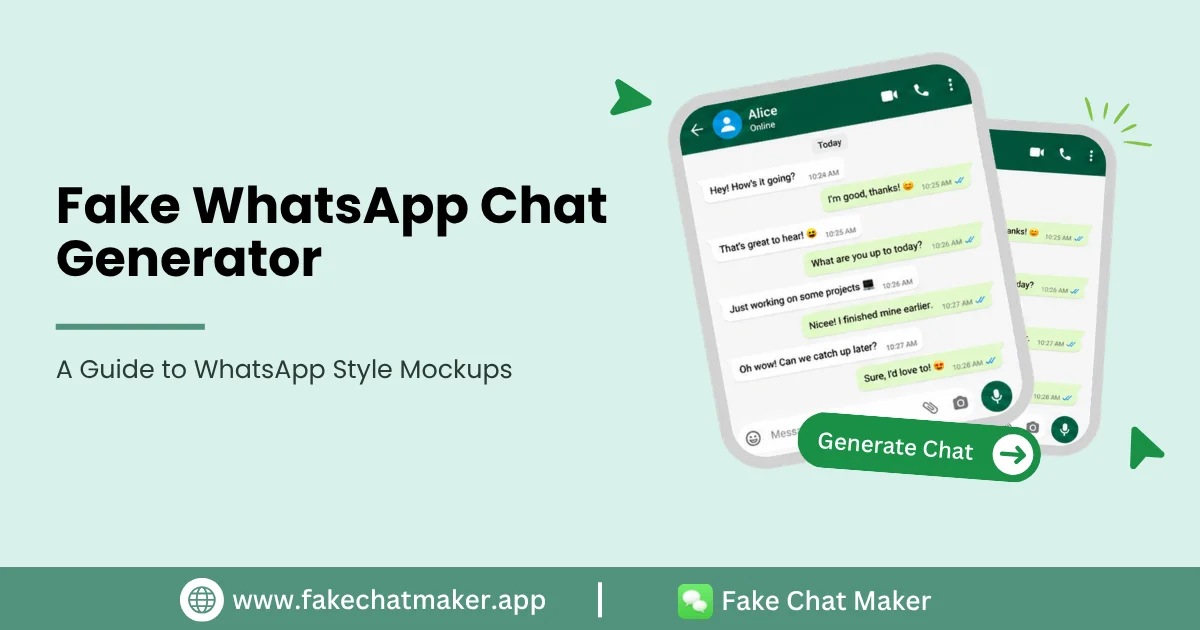
Introduction
A WhatsApp style chat mockup can help a creator visualize fictional dialogue without publishing a real private conversation. The familiar message layout works well for storyboards, videos, presentations, design concepts and educational examples. You can build this type of fictional conversation directly with the WhatsApp chat maker and preview it before export.
This guide focuses on building a clear fictional conversation rather than making fabricated messages difficult to distinguish from authentic evidence.
What You Can Build
Depending on the controls currently available in the editor, a WhatsApp style mockup may include participant names, profile images, sent and received messages, timestamps, read states and appearance settings.
Use only features that are actually available in the live FakeChatMaker editor. Messaging interfaces change over time, so the site should not promise permanent exact replication.
Creative Uses
Writers can visualize a conversation between fictional characters. Video creators can turn scripted dialogue into a vertical scene. Product teams can illustrate a messaging flow. Educators can create fictional examples of suspicious messages, support conversations or messaging etiquette without exposing a real person's private chat.
How to Create a WhatsApp Style Mockup
Start with a short script. Choose fictional names and images, then enter the messages in a logical order. Use timestamps and read states only when they help the viewer understand the scene. If this is your first project, How FakeChatMaker Works explains the basic setup and export workflow.
Preview the result at the final size. For video use, make sure the messages remain readable on a phone screen. For presentations, leave enough space around the conversation so it does not feel crowded.
Use Fictional Profile Details
Avoid copying a real person's photograph, phone number or identity simply to add credibility. Fictional details are normally enough for a creative scene and reduce the risk of harmful impersonation.
If a real identity is necessary for an authorized project, make sure the use is appropriate and any required permission has been obtained.
Disclose When Context Could Mislead
If viewers could reasonably interpret the image as a genuine WhatsApp conversation, add a clear fictional or mockup label. This is particularly important for serious claims, recognizable people, brands or situations where the image might be reposted without its original caption. For situations involving identity, disclosure or possible confusion, use the Responsible Use guide as the publishing checklist.
What Not to Use It For
Do not create fake payment proof, fabricated customer conversations, false accusations or messages designed to obtain money or account access. Do not present a generated chat as evidence that a real person sent a message.
Conclusion
A WhatsApp style mockup is most useful when it replaces the need to expose a real private conversation. Use fictional identities, build only the details your scene needs and give the audience clear context.
FakeChatMaker is independent and is not affiliated with or endorsed by WhatsApp or Meta.
Frequently Asked Questions
No. A chat mockup is a standalone visual created in the editor and does not send a message through a real WhatsApp account.
Yes, for lawful creative uses. Add disclosure when the fictional nature could be misunderstood.
Yes. FakeChatMaker is free to use without requiring an account, and standard image exports do not include a watermark.